Create animated stripes in Jetpack Compose
Use default gradients to create mesmerizing patterns in your app
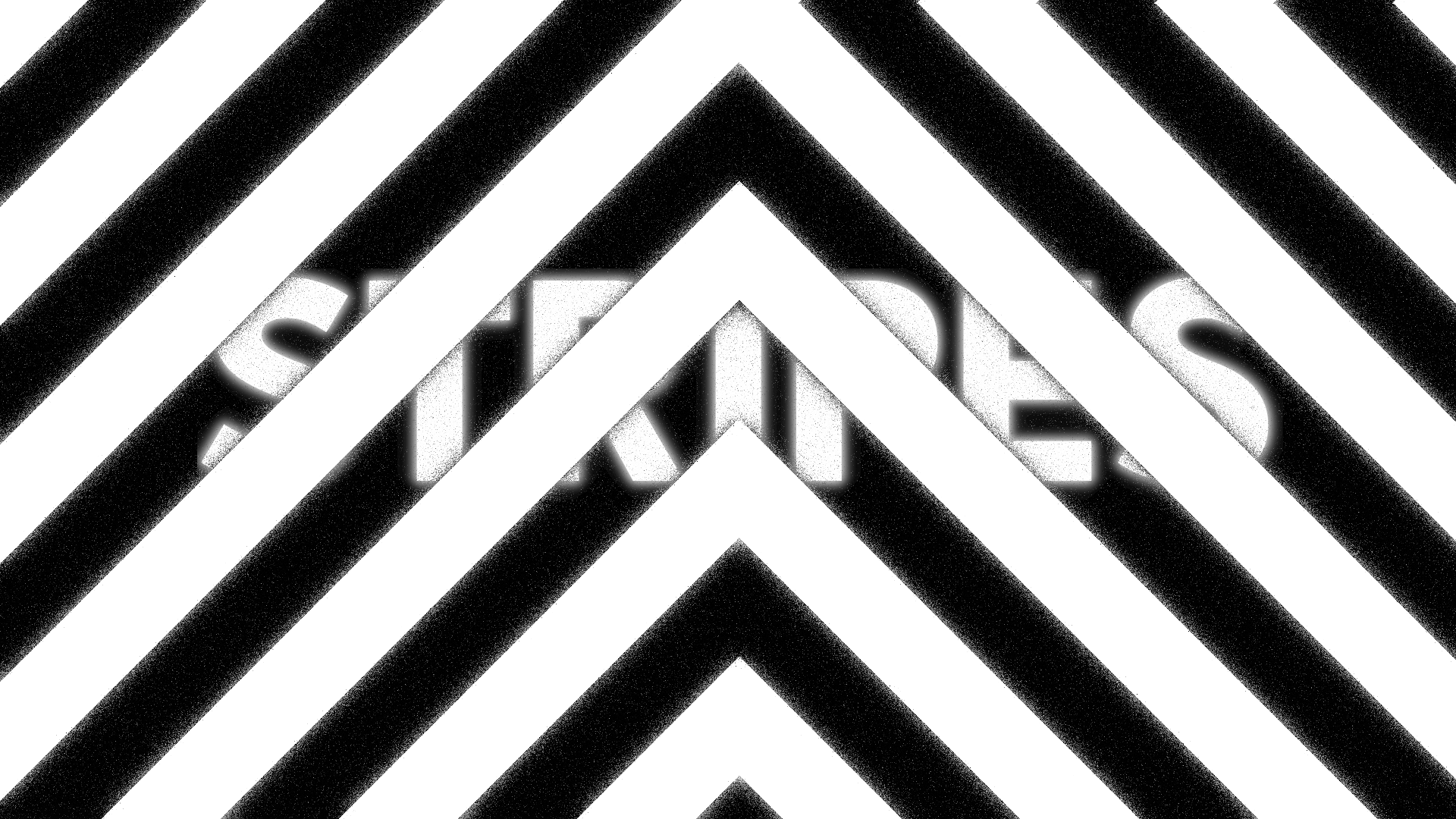
If we want to draw and animate stripes in Jetpack Compose, we can use a gradient with its available options to achieve a design like this.
Slider with a stripe pattern
Manipulating Color Stops
The trick is to position certain color stops right next to each other. This creates hard transitions instead of smooth gradients.
In this illustration, observe how the two middle stops get closer and closer, until they form a hard edge.
Color stop animation showing a hard edge forming
To create this hard edge in the code, we simply set two middle color stops at the same point, but with different colors.
Modifier.drawBehind {
    drawRect(
        brush = Brush.linearGradient(
            0f to Color.Black,
            .5f to Color.Black,
            .5f to Color.White,
            1f to Color.White,
        )
    )
}
The 0f to Color.Black and .5f to Color.Black define a black color for the first half. Then .5f to Color.White and 1f to Color.White define a white color for the second half. The abrupt transition at .5f gives you the stripe edge.
In a future section, we will learn how to automate defining the color stops of each stripe.
Drawing The Stripes
What we have right now is just two halves, but not repeating stripes.
To create the stripes, we need to repeat these colors multiple times over the entire area.
Modifier.drawBehind {
    drawRect(
        brush = Brush.linearGradient(
            0f to Color.Black,
            .5f to Color.Black,
            .5f to Color.White,
            1f to Color.White,
            start = Offset(0f, 0f),
            end = Offset(20f, 0f),
            tileMode = TileMode.Repeated,
        )
    )
}
We can do this by setting the start and end offsets to control the angle and size of one iteration. Then we set tileMode to TileMode.Repeated, which tiles the pattern across the entire surface.
Reducing the gradient distance to create stripes
Animating the stripes
Now that we can draw the stripes, let's learn how to animate them. We can do this simply by offsetting the start and end points.
start = animatedOffset + Offset(0f, 0f),
end = animatedOffset + Offset(20f, 0f),
This way, we can make the stripes move by animating animatedOffset however we want.
Animating the starting point of the gradient so the stripes appear to be moving
A Little Helper Function
So far, we have learned the basics of creating and animating stripes using gradients. But I have found that this can get quite complicated when building more complex patterns. To make creating these designs less tedious, let's create a helper function.
fun Brush.Companion.stripes(
    vararg stripes: Pair<Color, Float>,
    width: Float = 20f,
    angle: Float = 45f,
    phase: Float = 0f,
): Brush {
    val totalWeight = stripes.sumOf {
        it.second.toDouble()
    }.toFloat()

    val colorStops = mutableListOf<Pair<Float, Color>>()
    var currentPosition = 0f

    stripes.forEach { (color, weight) ->
        val proportion = weight / totalWeight
        colorStops.add(currentPosition to color)
        currentPosition += proportion
        colorStops.add(currentPosition to color)
    }

    val angleInRadians = angle * (PI / 180)
    val endX = (width * cos(angleInRadians)).toFloat()
    val endY = (width * sin(angleInRadians)).toFloat()

    val phaseOffsetX = endX * phase
    val phaseOffsetY = endY * phase

    return linearGradient(
        colorStops = colorStops.toTypedArray(),
        start = Offset(-phaseOffsetX, -phaseOffsetY),
        end = Offset(endX - phaseOffsetX, endY - phaseOffsetY),
        tileMode = TileMode.Repeated,
    )
}
First thing, and most important, hurdle to clear is the color stops. Setting them manually is quite error prone and not fun to do. It was easy when the color stops were just 0, 0.5 and 1. But what if we need multiple colors of different sizes?
Instead, let's just pass in the colors in a list matched with a weight. The weights determine proportions. If all weights are equal, all stripes are equal. If one stripe has a weight of 2f and another has 1f, the first takes up 2/3 of the space.
// Equal stripes
Brush.stripes(
    Pink400 to 1f,
    Transparent to 1f,
)

// Pink twice as wide
Brush.stripes(
    Pink400 to 2f,
    Transparent to 1f,
)

// Multiple colors
Brush.stripes(
    Red to 1f,
    Blue to 2f,
    Green to 1f,
)
Next, instead of dealing with start and end offsets, we can define a single repetition with a width and angle.
The width parameter establishes the size of one complete repetition. While the angle describes the rotation in degrees. 0° is horizontal, 90° is vertical, 45° is diagonal.
Finally, we have the phase. If you are familiar with Path Effects, you know you we use the phase there to offset a starting point. We will use this to animate the pattern, instead of using an animated offset.
The phase is proportional to the width we passed in earlier. Meaning, 1f maps to the length of one repetition.
With this helper function, we can then create animated stripes like this:
val phase by rememberInfiniteTransition()
    .animateFloat(
        initialValue = 0f,
        targetValue = 1f,
        animationSpec = infiniteRepeatable(
            animation = tween(
                durationMillis = 300,
                easing = LinearEasing,
            )
        )
    )

Box(
    modifier = Modifier
        ...
        .drawBehind {
            drawRect(
                brush = Brush.stripes(
                    White to 1f,
                    Zinc900 to 1f,
                    width = 10.dp.toPx(),
                    angle = 45f,
                    phase = -phase
                )
            )
        }
)
Loader with an animated stripe pattern, built with the helper function above
And with that, we can create interesting patterns to use in our app. This works well in loaders, or components where you need to show an ongoing state. Or, you can use it to add some texture. I used this same concept in my CRT effect article.
Let me know what you build with this.
Thanks for reading and good luck!
Subscribe for UI recipes